Now for the slightly trickier stuff — the things you only need now and then, but you really want to know when you need them.
Save As: When and How
Use Save As when you want to:
- Keep the original AND have a new version (e.g., "Resume 2025" + "Resume 2026" + "Resume 2027")
- Save the same document to a different folder
- Save in a different file format (like PDF or older .doc)
- Rename a document while saving
- 1Click File (top-left).
- 2Click Save As (or press
F12 on Windows / Cmd+Shift+S on Mac — same dialog, faster).
- 3The Save As dialog opens. Change anything you want: file name, location, or format.
- 4Click Save. The original file stays untouched. You're now working in the new copy.

The trap to watch for
After Save As, you're now editing the NEW file, not the original. If you then press Ctrl+S, you're updating the new version. The original sits where it was, unchanged. That's by design — just be aware of which file you're working in.
File Formats: What's the Difference?
Word can save in several formats. Most of the time, stick with .docx. But know the others so you can pick the right one when it matters.
How to change the format when saving
In the Save As dialog, look for the dropdown labeled "Save as type" (Windows) or "File Format" (Mac). Click it, pick the format you want, then save. To save as PDF specifically, you can also use File > Export > Create PDF/XPS on newer Word versions.
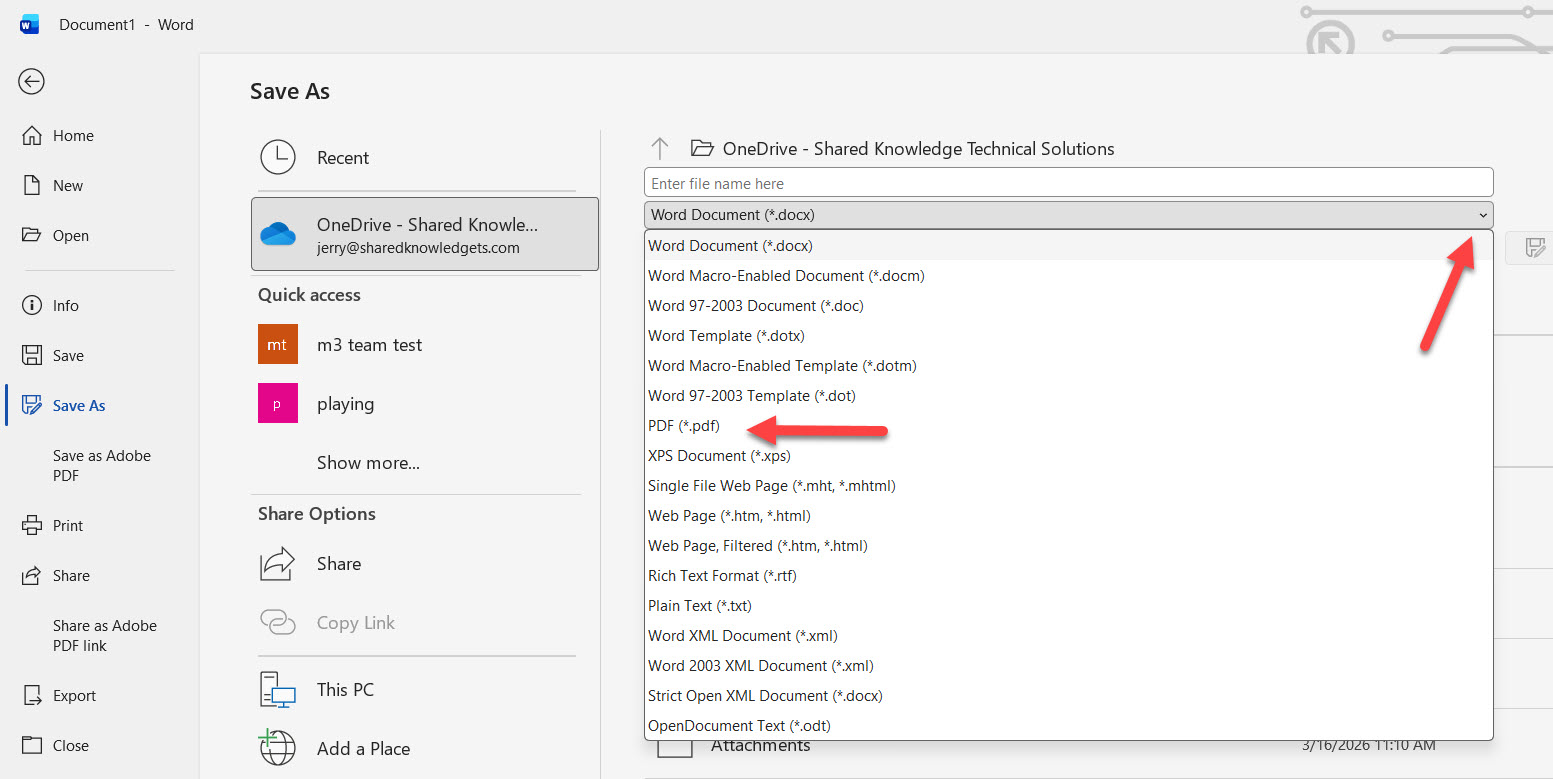 The "Save as type" dropdown expanded — .docx and .pdf are the two you'll use most.
Curious where your saved files actually live on your computer? The File Explorer microcourse walks through that — worth a look after you finish this one.

The PDF habit
If you're emailing something important — a resume, an invoice, a signed letter — save a PDF copy and send THAT. PDFs can't be accidentally edited by the recipient, and they look the same on every device. Always Save As PDF for anything official.
When Word Crashes: Auto-Recovery to the Rescue
If Word crashes (or your computer reboots, or you accidentally close without saving), Word's Auto-Recovery feature often has a backup.
By default, Word saves a hidden recovery copy of your document every 10 minutes while you work. When you reopen Word after a crash, it usually shows a panel on the left called "Document Recovery" with any unsaved files it found.
- 1If Word doesn't show the recovery panel automatically, click File > Open.
- 2Scroll to the bottom of the recent documents list. Click "Recover Unsaved Documents".
- 3You'll see a list of files Word managed to save. Pick the one you want, click Open, and immediately Save As with a proper name.
Auto-Recovery isn't a substitute for saving
It works most of the time, but not always. The recovered version might be missing your last few minutes of changes (whatever you typed after the last 10-minute auto-save). The best protection is still pressing Ctrl+S every few minutes while you work. Treat Auto-Recovery as your safety net, not your strategy.
AutoSave (capital S) is different
If you save your document to OneDrive (the cloud), Word also has an AutoSave toggle in the top-left that, when on, saves every change as you type. Different from Auto-Recovery — AutoSave is real-time, only works on OneDrive files, and you'll see an AutoSave switch in Word's title bar. Highly recommended if you have OneDrive.
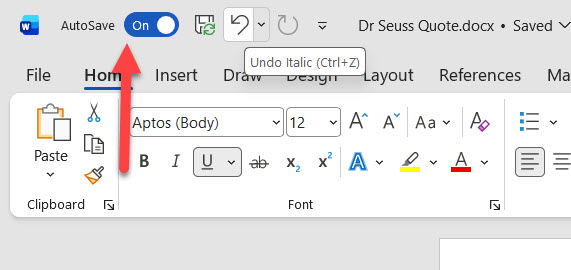 The AutoSave toggle lives in the top-left of Word — on (green) means every keystroke is saved to OneDrive in real time.
Quick Quiz: Match Each Format to Its Use
Match each file format to the right scenario:
Format
.docx
.pdf
.doc
.txt
Best for...
Default save format for everyday Word work
Sending a resume or invoice you don't want edited
Someone using Word 2003 or older
Plain unformatted text only
That's the whole save toolkit.
Ctrl+S for everyday updates. Save As when you need a new copy with a different name, location, or format. Auto-Recovery as your safety net when something goes wrong. And the file format you pick (.docx for working, .pdf for sharing) tells the world what you intend.
One more chapter — recap, two real-world scenarios, and your certificate. Click "Summary & Certificate" below.
Worth asking where those saved files actually end up. If the answer is “only on this computer,” one failed drive takes the lot — which is the whole argument for a backup that runs on its own.