Here's the first-time-save dance. Walk through it once, then it's muscle memory.
The First Save: Step by Step
- 1Press
Ctrl+S (or Cmd+S on Mac). Because the document has never been saved before, Word opens the Save As dialog automatically.
- 2Choose where to save. On the left of the dialog you'll see places: This PC (local files), OneDrive (cloud), Recent folders. Pick one. For most folks, "Documents" inside "This PC" is the right default.
- 3Type a file name in the "File name" box. Don't take the default ("Document1") — that's a future-you nightmare. Give it a name you'll recognize three months from now.
- 4Leave the "Save as type" set to Word Document (*.docx). That's the standard.
- 5Click Save. Done. Your file is saved.
That keyboard shortcut for save is the single most useful one to memorize:
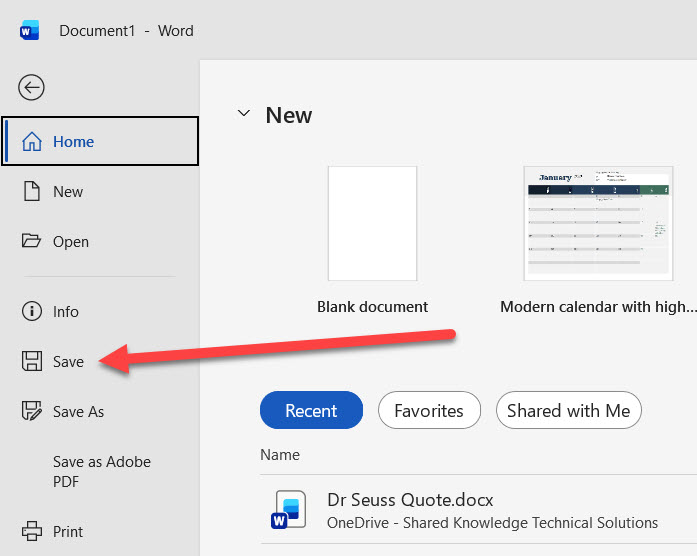 The Save As dialog — pick a folder on the left, type a name in the middle, click Save.
Every save after the first one
Once a document has a name and location, Ctrl+S just instantly writes your changes to that same file. No dialog, no prompts — just a quick flash of the title bar and you're saved. Press it every few minutes as you work.

It's saved. Now the question that decides everything else in this course:
Are these files family stuff, or work stuff somebody else has to open?
File Names That Future-You Will Thank You For
BadDocument1.docx — that's Word's placeholder. You'll have 14 "Document1" files in a year if you keep these.
Badletter.docx — which letter? To whom? About what?
Badasdfasdf.docx — we've all done this in a panic. Don't.
GoodInsurance Letter 2026-05-21.docx — topic, what it is, and the date.
GoodGrandkids Summer Schedule.docx — descriptive, easy to find.
GoodResume - Jerry Hickman - 2026.docx — what + whose + when.

The 6-month test
Will you know what this file is six months from now, just from the name? If not, give it a better name. Future-you is the one searching through 50 documents looking for the one about the dentist appointment.
Where to Save: The Three Common Spots
Documents folder — the default home
Every Windows PC and Mac has a "Documents" folder. That's where most folks save by default and it's a fine choice. Easy to find later (it's pinned in File Explorer / Finder), backs up to OneDrive automatically if you have that turned on.
Desktop — for things you'll use right now
Your desktop is fine for files you're working on this week. But it gets messy fast — aim to move things off the desktop into Documents once you're done with them.
OneDrive — the cloud-backup option
If you have a Microsoft account and OneDrive turned on (most Windows PCs do by default), saving to OneDrive means your file is also saved to Microsoft's servers. If your computer dies tomorrow, you can sign into onedrive.com on any other computer and download your document. Strong recommendation for anything important.

One rule worth following
For anything important — resumes, letters to lawyers/doctors/insurance, anything you'd be sad to lose — save to OneDrive, not just your local Documents folder. Cloud backup costs nothing extra and saves the day when your laptop suddenly won't turn on.
How Do I Know If I've Saved?
Look at the very top of the Word window — the title bar. You'll see one of two things:
- "My File Name — Word" (just the name) — you're saved.
- "My File Name — Word" with a small dot, asterisk, or "Saved" indicator next to the name — this varies by version. Newer Word also shows an "AutoSave" toggle in the top-left corner that's green when on, gray when off.
If you ever close Word with unsaved changes, you'll get a popup that says "Do you want to save changes to [filename]?" That's your last chance — click Save, not Don't Save.
Quick Quiz: First-Time Save Steps
You just finished typing a new letter. Put the first-time-save steps in order:
Type a descriptive file name (not "Document1")
Click the Save button
Press Ctrl+S to open the save dialog
Pick where to save it (Documents, Desktop, OneDrive)
You save like a pro now.
First-time save dialog, file names that make sense, and the three common save locations (Documents, Desktop, OneDrive). Press Ctrl+S every few minutes and you'll never lose work.
Next chapter is the slightly trickier stuff: Save As for new versions or different formats, file formats (.docx vs .pdf vs others), and how to recover work after Word crashes. Click "Save As, Formats & Recovery" below.