
Master File Explorer: Organize Your Digital Life
A 10-Minute Micro-Course with Skits, Your Shared Knowledge Sidekick
Learn how to navigate, organize, and take control of your files using Windows File Explorer. Stop losing documents and start finding everything in seconds!
Welcome! Let's Organize Your Digital Life

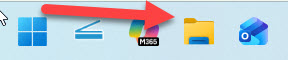
Ever spent 10 minutes looking for a file you KNOW you saved somewhere? Maybe it's a tax document, a client invoice, a photo, or that thing you downloaded last week. Whether you're managing files at home or keeping a business running, you're not alone — most people were never taught how to organize their computer. That little yellow folder icon on your taskbar is the key to fixing that!
But first — what's your name?
What Is File Explorer?
File Explorer is your computer's filing cabinet. Every single file — documents, photos, spreadsheets, client files, downloads — lives inside it. Whether you're organizing personal files at home or managing business documents at the office, once you understand how it works, you'll never lose a file again.
Three Ways to Open File Explorer
The Fastest Way
Win + E
Hold the Windows key and press E
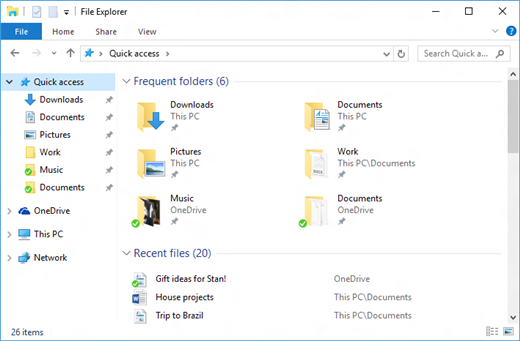
The Main Parts of the Window
Navigation Pane (Left Side)
The folder tree on the left. This shows Quick Access, This PC, and all your drives. Think of it as the table of contents.
Address Bar (Top)
Shows where you are right now, like a breadcrumb trail. You can also type a folder path here to jump directly to it.
File Area (Center)
The main area showing your files and folders. This is where you see everything inside the current folder.
Search Bar (Top Right)
Type any part of a filename to search. File Explorer will find it for you — even inside subfolders.
Try it now! Press Win+E on your keyboard. File Explorer should open right up. Look at the left side — see Quick Access and This PC? That's the navigation pane. We'll explore it on the next slide.
The Navigation Pane: Your Roadmap

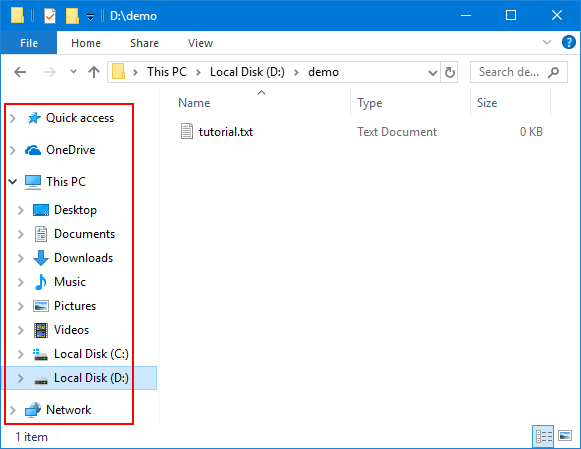
The navigation pane on the left side of File Explorer is like a map of your entire computer. Once you understand these four sections, you can get anywhere in seconds.
Quick Access (Top of the Pane)
Your favorites! Folders you use all the time show up here. Windows automatically adds your most-used folders, but you can also pin your own. Think of it as speed dial for folders.
Default folders: Desktop, Documents, Downloads, Pictures
This PC
Shows all your drives and storage — your main hard drive (C:), any USB drives you've plugged in, external hard drives, and your main user folders (Documents, Pictures, Music, Videos).
Think of it as: The "everything on this computer" view
OneDrive / Cloud Storage
If you use OneDrive (Microsoft's cloud storage), it shows up here too. Files saved here are backed up online automatically — accessible from any device.
Network (If Available)
Shows other computers and shared folders on your network. At the office, this is how you access shared drives, network printers, and team folders. At home, you might see other family devices here.
Skits' Key Insight
Quick Access is for speed. This PC is for finding things. Day-to-day, you'll mostly use Quick Access to jump to your favorite folders. When you need to find something specific or check how much space you have, go to This PC.

The folder system we build in a few minutes leans hard on the answer.
Match the Feature!

Click a File Explorer feature on the left, then click its matching description on the right. Match all four correctly to move on!
Match Each Feature to What It Does
Features
What It Does
Build a Folder System That Works
A good folder system is like a well-organized filing cabinet — everything has a place, and you can find anything without thinking. Whether it's personal files at home or client records at work, here's how to set one up in about 10 minutes.
Clean Up Downloads & Pin Your Favorites

Your Downloads folder is probably a mess (no judgment — everyone's is, at home and at the office). And Quick Access can save you tons of clicks every day. Let me show you both.
Put the Steps in Order!
It's Monday morning. Your Downloads folder has 200 files, your Desktop is covered in icons, and you can't find that report your boss (or your accountant) needs. Time to get organized! Click the steps below in the correct order.
Click Each Step in the Right Order

You've Mastered File Explorer!

You just learned how to navigate File Explorer, build your own folder system, use keyboard shortcuts like a pro, and clean up that Downloads folder. Your computer is about to be so much more organized. No more hunting for files. No more "I know I saved it somewhere." You've got this.
Next time you need a file, just hit Win+E and go straight to it. You're organized now — and it feels great.
Ready for More?
Check out our other free micro-courses, including Screenshots Made Simple and Printer Problems!