Alright — the two-step dance starts here. Select, then act.
Selecting text means highlighting it so Word knows what to apply your next action to. There are five common ways to do it, depending on how much text you want to grab.
Five Ways to Select Text
| To select… | Do this |
|---|
| One word | Double-click on the word |
| One sentence | Hold Ctrl (Cmd on Mac) and click anywhere in the sentence |
| One paragraph | Triple-click anywhere in the paragraph |
| An arbitrary chunk | Click and drag from the start to the end of what you want |
| Everything in the document | Press Ctrl+A (Cmd+A on Mac) |

The one most folks miss
Triple-click. Most people don't know about it. It's the fastest way to grab a whole paragraph without having to drag across it. Try it — click three times fast in a paragraph and the whole thing highlights.
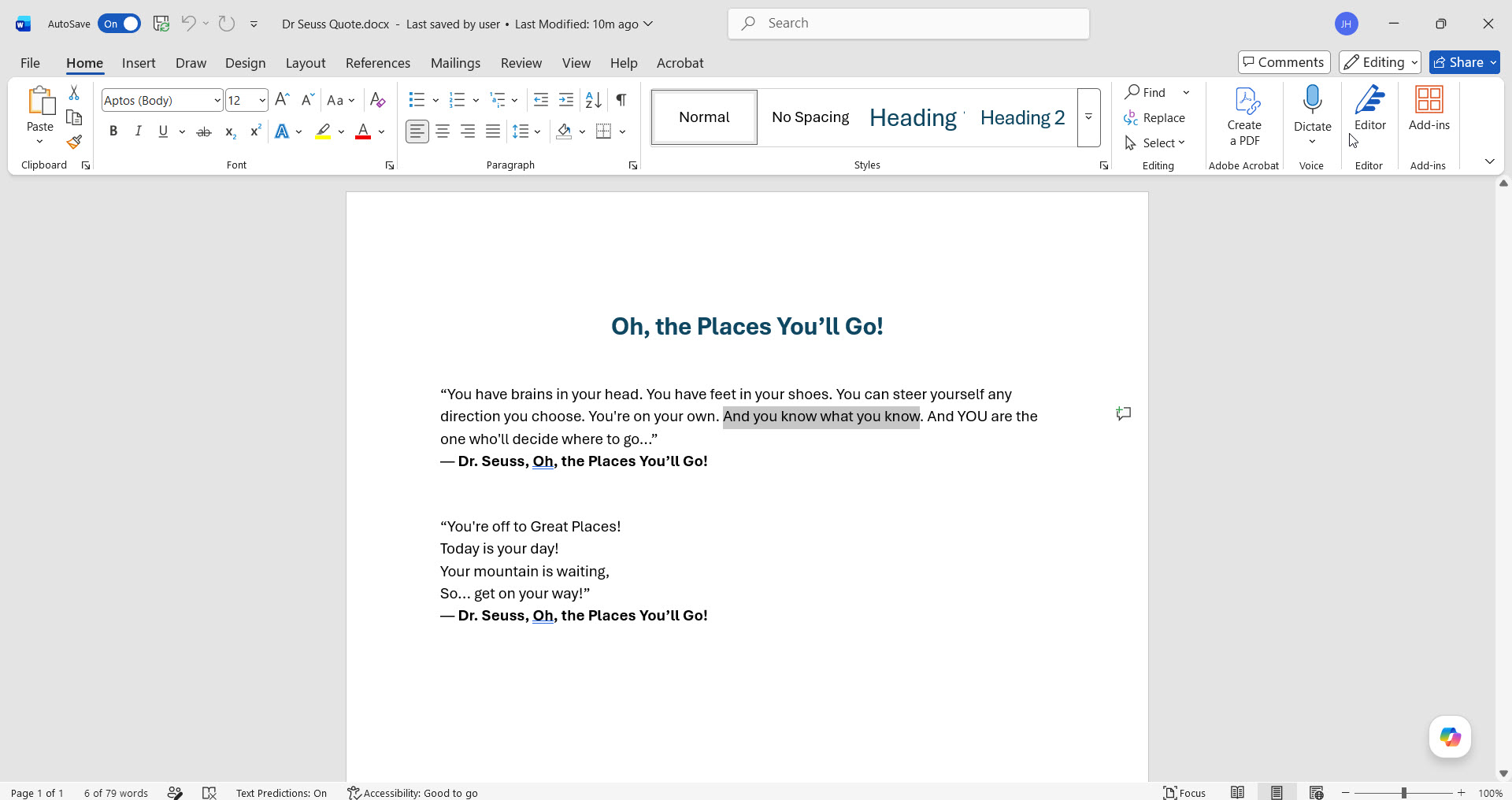 Selected text shows up highlighted in blue — that's how you know Word is paying attention.
How do I un-select?
Click anywhere outside the selection (or just click once on plain text). The highlight goes away and your cursor moves to where you clicked.

Selecting is the dull part, and it's behind you. One question before we start making things bold:
Who ends up reading what you're editing?
Basic Formatting: Bold, Italic, Underline
These are the three you'll use the most. They live on the Home tab of the ribbon (top of Word), in the "Font" group.
 The Home tab ribbon. The Font group has the B, I, U buttons plus the font + size pickers.
The two-step dance:
- 1Select the text you want to change.
- 2Click the Bold (B), Italic (I), or Underline (U) button on the Home tab. Or use the keyboard shortcut.
Here's what each one does to the same sentence:
Or skip the mouse and use the keyboard:
(On Mac: ⌘ instead of Ctrl)
The shortcuts are toggles
Press Ctrl+B on bold text to un-bold it. Same for italic and underline. Apply, change your mind, undo with the same shortcut.
Changing Font and Font Size
Same drill: select the text, then pick a font from the font dropdown (it usually shows "Calibri" or "Aptos" by default) or change the size from the number dropdown next to it.
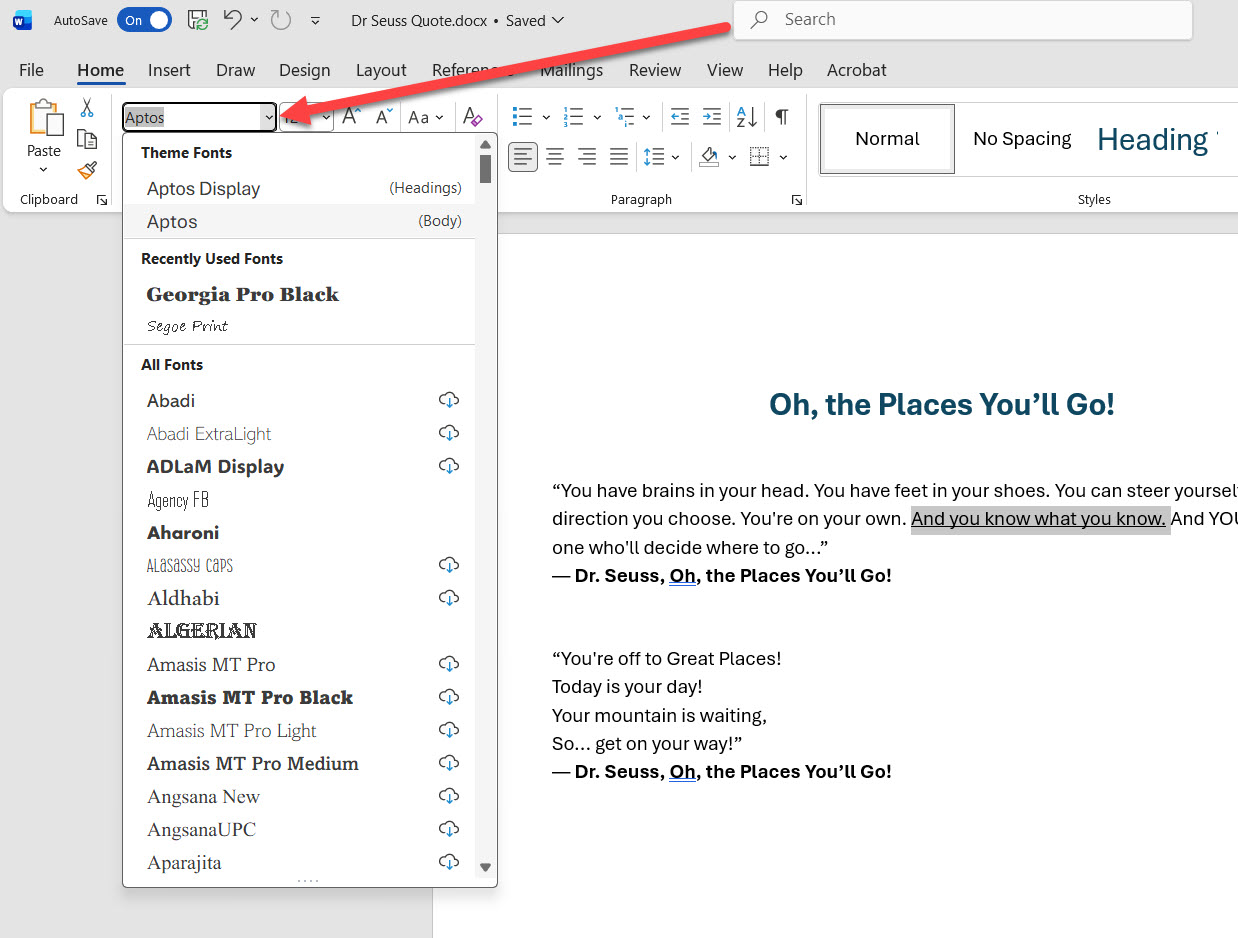 The font dropdown opened — click any font name to apply it to your selected text.
For font size, you can type a number directly or pick from the list:
- 10-11pt = standard body text (default in most Word docs)
- 12-14pt = a little easier to read, good for letters and printouts
- 16-22pt = section headings
- 24pt+ = main title or big bold statement

If your eyes are tired
Bump everything up to 14pt for letters and lists you print at home. Way easier on the eyes than the default 11. (Ctrl+A to select all, then change the font size — that's how to do it for a whole document at once.)
Quick Quiz: Put the Steps in Order
You want to make the word "URGENT" bold in a letter you typed. Tap the steps in the order you'd do them:
Click the steps in order:
Press Ctrl+B (or click the Bold button)
Click somewhere else to un-select; you're done
Find "URGENT" in your document
Double-click the word to select it
Two-thirds of editing, done.
You can select any chunk of text, format it bold or italic or underlined, and change the font size. That handles most of what folks do day to day.
Next up: moving text around (cut, copy, paste), undoing mistakes, and the find-and-replace time-saver. Click "Cut, Copy, Paste, Undo" below.