OK, now we're at the good stuff.
These five shortcuts are the ones you'll use every time you edit anything — not just Word. They work in email, in your web browser, in just about every program on a computer. Learn them once, use them forever.
Cut, Copy, Paste — The Clipboard Trio
The clipboard is like a sticky note your computer holds. You put text on it, then drop it somewhere else. Three actions:
| Action | What it does | Windows | Mac |
|---|
| Cut | Removes selected text and puts it on the clipboard (so it disappears from the document until you paste it) | Ctrl+X | Cmd+X |
| Copy | Puts selected text on the clipboard but leaves the original in place | Ctrl+C | Cmd+C |
| Paste | Drops whatever's on the clipboard at your cursor | Ctrl+V | Cmd+V |
The keyboard shortcuts side by side:
Cut:Ctrl+X
Copy:Ctrl+C
Paste:Ctrl+V
Undo:Ctrl+Z
(On Mac: ⌘ instead of Ctrl)
Don't want to memorize the shortcuts yet? Right-click on selected text and you'll see Cut, Copy, and Paste right there in the menu:
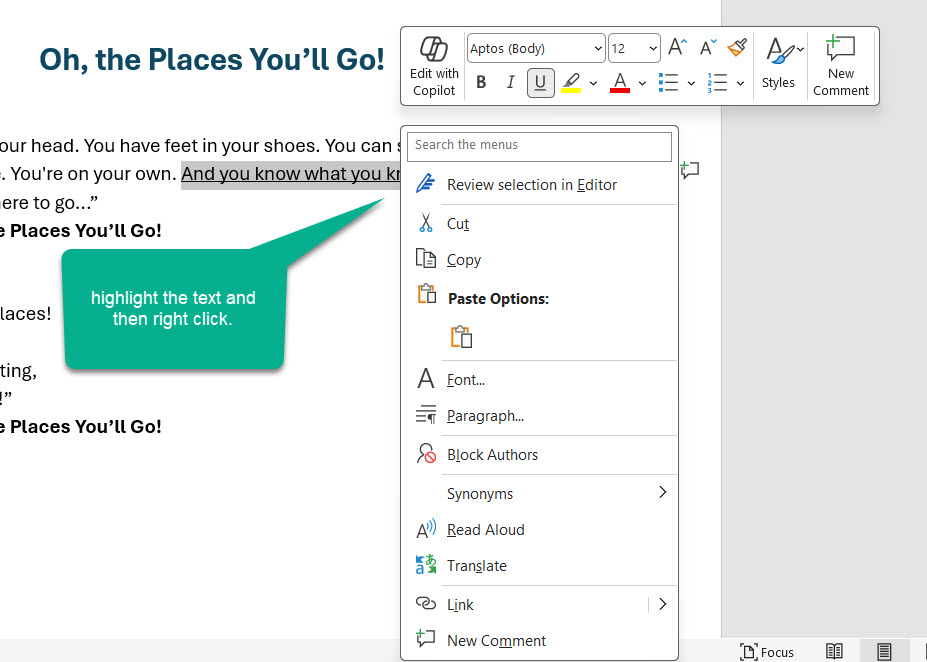 Right-click on highlighted text and the same Cut / Copy / Paste options are right there.
The classic move: cut from one spot, paste into another. That's how you reorder paragraphs without retyping them.
Try it once
Open any Word document. Select a word (double-click), press Ctrl+X (it disappears), click somewhere else in the document, press Ctrl+V (it reappears). That's the workflow.

The clipboard only holds one thing at a time
Copy a sentence, then copy another sentence — the first one is gone. The clipboard only holds your most recent cut or copy. If you need to move several things, paste one before you cut/copy the next.
Undo and Redo — The Safety Net
If you ever do anything in Word and immediately think "wait, that wasn't what I meant" — press Ctrl+Z (Cmd+Z on Mac). That's Undo. It steps backwards through your changes one at a time.
Word remembers a LONG history. You can undo dozens of changes in a row if you keep pressing it.
| Action | Windows | Mac |
|---|
| Undo — reverse last action | Ctrl+Z | Cmd+Z |
| Redo — reverse the undo (re-do what you undid) | Ctrl+Y | Cmd+Shift+Z |
You can also click the curved-arrow Undo button up in the Quick Access Toolbar at the top-left of Word:
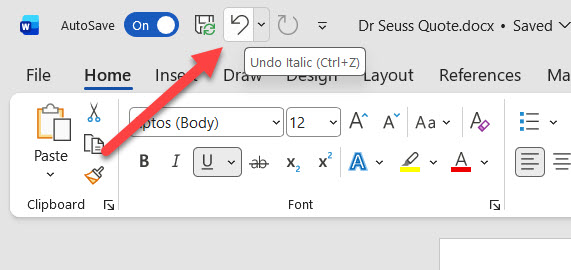 The Undo arrow in the Quick Access Toolbar — click once for each step backward.
Word remembers a lot, but not forever
Word's undo history resets when you close the document. So if you save, close, reopen, and then realize you made a mistake yesterday — Ctrl+Z won't fix it. Hopefully you saved a previous version too.
Find & Replace — The Massive Time-Saver
Typed "Frank" 14 times when you meant "Frances"? Find & Replace fixes all of them in one shot.
- 1Press Ctrl+H (Cmd+H on Mac, or use Edit > Find > Replace).
- 2The Find and Replace dialog opens. Type what you want to find (e.g., "Frank") in the top box.
- 3Type what you want to replace it with (e.g., "Frances") in the bottom box.
- 4Click Replace All to change every instance at once, or click Replace one at a time to review each before changing.
- 5Word shows "X replacements made." Click OK, then close the dialog.
Replace All can be too aggressive
Searching for "Frank" and replacing with "Frances" will also change "Frankly" into "Francesly" and "Frankfurt" into "Francesfurt." If there's a chance your target word appears inside other words, use Replace (not Replace All) and review each one. Or check the "Match whole words only" option before clicking Replace All.
Just want to FIND something?
If you only need to find a word (not replace it), press Ctrl+F (Cmd+F on Mac). A small search box opens, you type your word, Word jumps to it and highlights it. Useful for "where in this 10-page letter did I mention the meeting time?"
Quick Quiz: Match Each Shortcut to What It Does
Match each keyboard shortcut to its action:
Shortcut
Ctrl+C
Ctrl+V
Ctrl+X
Ctrl+Z
Ctrl+H
What It Does
Cut (remove selection, save to clipboard)
Copy (save selection to clipboard, leave in place)
Paste (drop clipboard at cursor)
Undo (reverse last action)
Find and Replace text
That's the editing toolkit.
Cut, copy, paste, undo, find-and-replace. Five keyboard shortcuts that work in just about every program on your computer — not just Word. Email, web browsers, spreadsheets — same shortcuts everywhere. Learn them in Word, use them everywhere.
One last chapter — a recap, two scenarios, and your certificate. Click "Summary & Certificate" below.
Doing this all day for work? A properly set-up machine saves more time than any shortcut does. That is the idea behind Jerry’s IT support in Winchester — keeping the tools out of your way.