Nice work — the hard part's behind you. Now let's make sure it stays clean without any effort.
Two simple habits keep an inbox tidy for good: a few folders for the things you want to keep, and one rule that files incoming mail for you automatically — so it never lands in your inbox in the first place.
Step 1: A Few Folders (Don't Overdo It)
Folders — Gmail calls them labels — are just labeled drawers for email you want to keep handy. The mistake people make is creating thirty folders and then never knowing which one a message went in. Keep it simple: three to five is plenty for most folks.
Good starter folders
Receipts & Orders · Family & Friends · Bills & Statements · Travel · To Read Later. Pick the two or three that match your life. You can always add one later.
- Find the folder list down the left side of your email.
- Gmail: scroll the left side to "Create new label." Outlook.com / Outlook app: right-click "Folders" (or your inbox) and choose "Create new folder."
- Type a short name (like "Receipts") and press Enter. Your new drawer appears in the left-side list.
- To file an email, drag it onto the folder — or select it and use the "Move to" button. (Better yet, let a rule do it for you — that's next.)
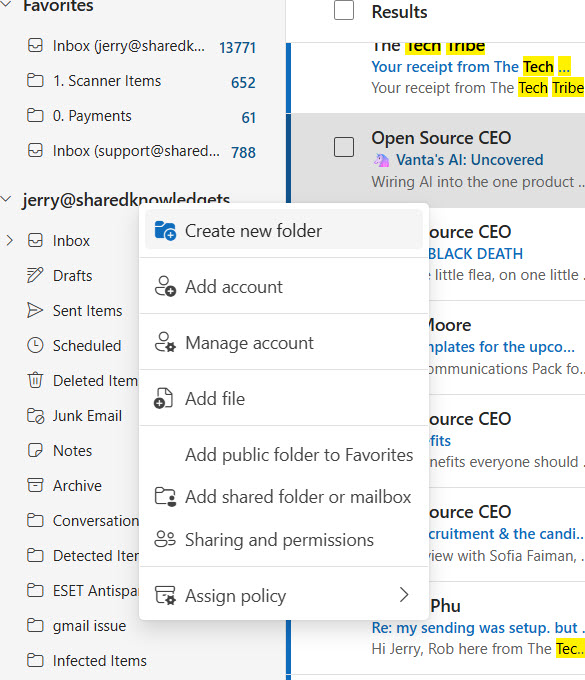 Make a few simple folders (labels) in the left-side list — three to five is plenty.
Step 2: One Rule That Files Mail For You
This is the one that feels like magic. A rule (Gmail calls it a filter) is a standing instruction: "Whenever an email comes from ____, automatically put it in ____." Set it once, and that mail quietly files itself forever — you never see it pile up in your inbox again.
Let's make one: send every receipt from your favorite store straight to your "Receipts" folder.
- Gmail: open an email from that sender, click the three-dot menu (top-right of the message), and choose "Filter messages like these." Outlook: right-click the email and choose "Rules" › "Create rule."
- Tell it what to match: the sender's address is already filled in. That's your "whenever an email comes from this store" part.
- Tell it what to do: choose "Move it to" (Outlook) or check "Apply the label / Skip the Inbox" (Gmail), and pick your Receipts folder.
- Save it. Most programs offer a checkbox to also apply it to existing emails — tick that and it files the old ones too. Done. From now on, those receipts file themselves.
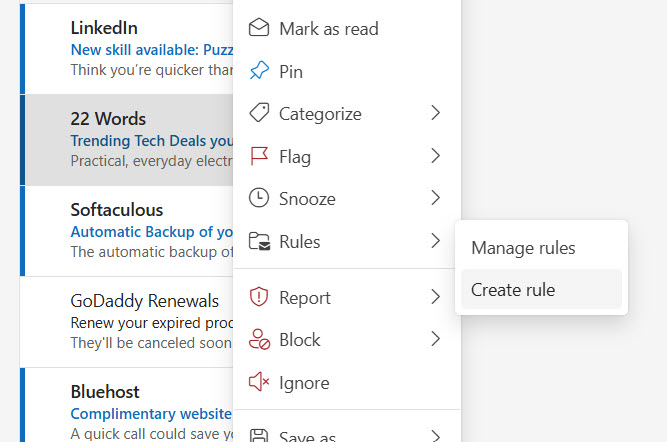 Start a rule: right-click the email › Rules › Create rule.
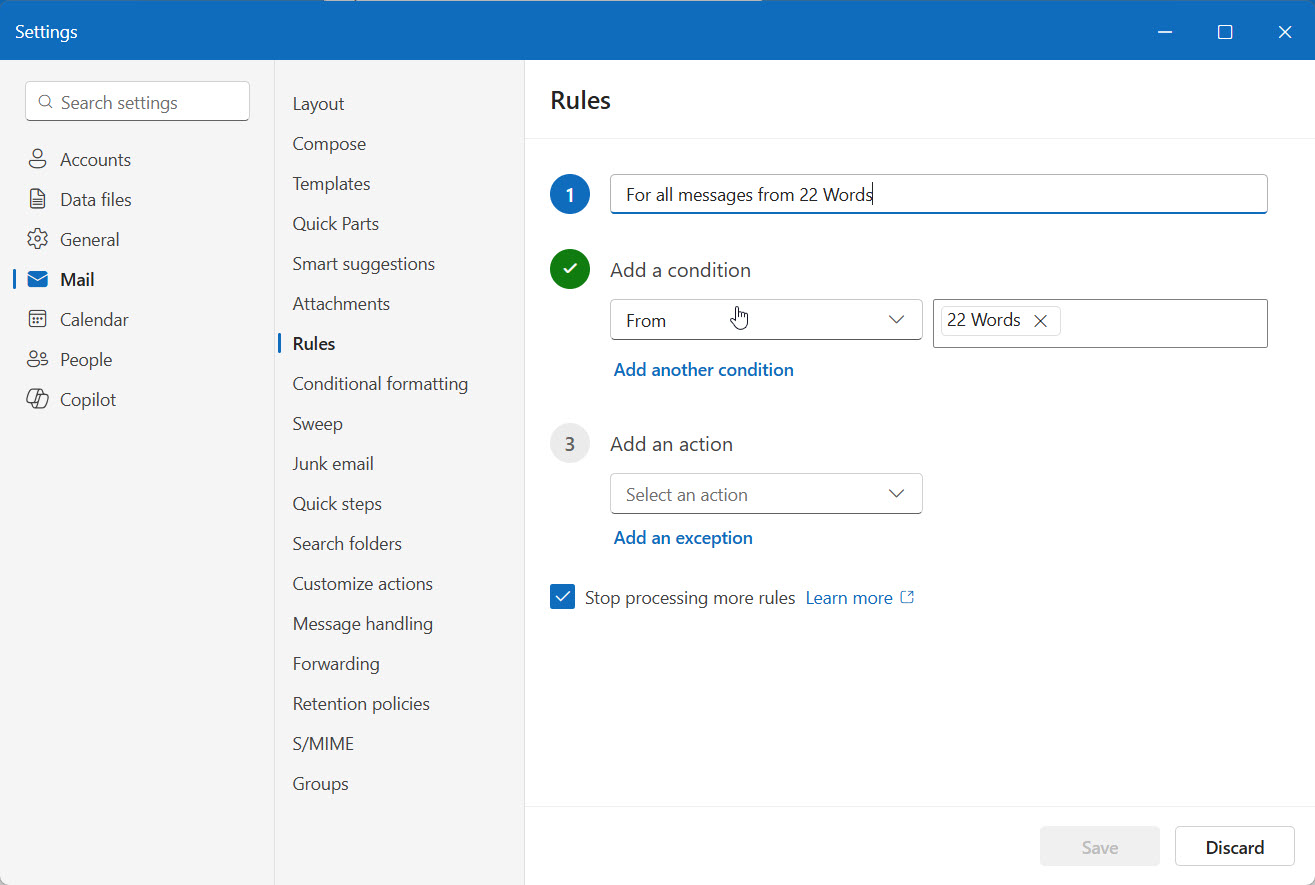 Then set it: from the sender → move to your folder. Set once, runs forever.

Start with just one
Don't try to build twenty rules today. Make one — for whoever clutters your inbox the most — and watch it work for a week. Once you see your inbox stay quieter on its own, you'll know exactly which one to make next.
A rule files — it doesn't delete
A rule just moves mail into a folder; nothing is thrown away. So you can be bold with it. If you ever want to see what a rule has been filing, just click that folder in the left-side list — it's all sitting there, neatly sorted.
Quick Check: The Magic Rule
You're tired of your bank's statement emails cluttering your inbox, but you definitely want to keep them. What's the best move?
Pick the best answer:
Now it stays clean on its own.
A few simple folders for what you keep, and one rule (or a few) doing the filing for you — that's the whole secret to an inbox that doesn't creep back to chaos. Tend it five minutes a week and you'll never face the 14,000-unread wall again.
Last stop: a quick recap and two real-world scenarios to lock it all in. Click below.