Alright — here's the secret the pros use, and it is NOT "read every email and decide."
You clean an inbox by the batch, not one message at a time. The trick is to gather up a whole pile of related emails at once, then deal with the entire pile in a single click. We'll do it two ways: clean by sender, then the unsubscribe purge.
Move 1: Clean by Sender (the big one)
Most of a cluttered inbox comes from a handful of senders — a store you order from, a newsletter, a social network, your bank. So instead of hunting one email at a time, you grab everything from one sender at once.
- Click the search box at the top of your email and type one sender's name — a store, a newsletter, anybody who emails you a lot. Press Enter.
- Now you see only their emails — maybe hundreds of them. That's the pile we're going to clear in one move.
- Select the whole batch. Click the "Select all" checkbox at the top of the list. (In Gmail it then offers "Select all conversations that match this search" — click that to grab every single one, not just the page you can see.)
- Archive or Delete the lot. Click Archive (keep them, just out of the inbox) or Delete (junk you'll never want). One click handles the entire pile.
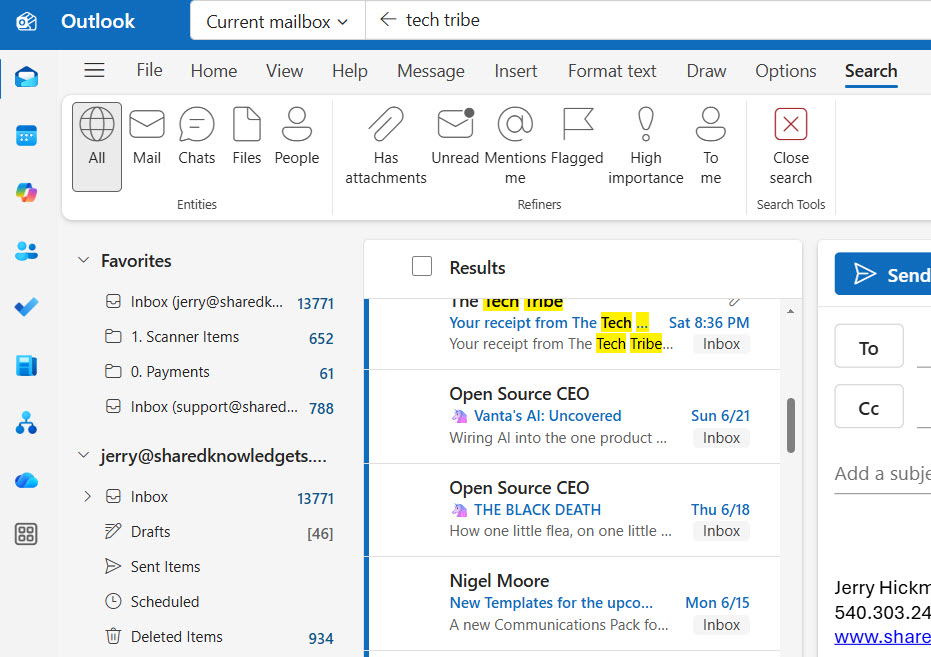 Search a sender's name to gather every email from them in one place.
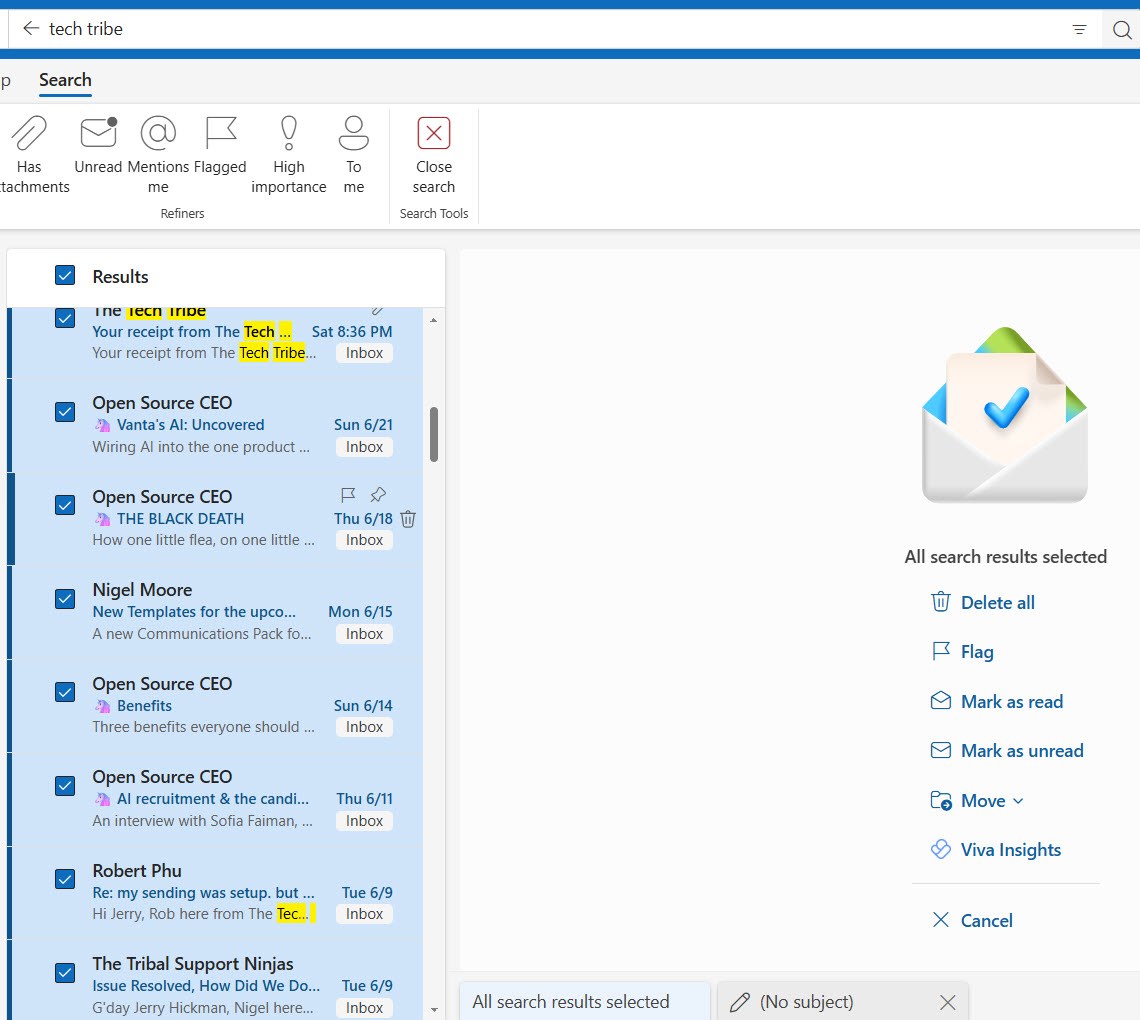 Click "Select all," then Archive or Delete the entire batch at once.
Where the buttons live
Gmail / Outlook.com (webmail): the select-all checkbox is the square at the top-left of the message list; Archive and Delete are the icons that appear in the toolbar above the list. Outlook desktop app: click the first email, hold Shift, click the last one to select the whole range, then use Archive or Delete on the Home ribbon.
Now repeat for your next-biggest sender. Three or four rounds of this — twenty minutes, tops — and your unread count falls off a cliff.

Skits' tip: sort by date, not feelings
Want to be extra safe? Search a sender, then archive everything older than a year. You almost certainly don't need a sale flyer from last spring — and even if you do, archived means it's still searchable. Old stuff goes first, no agonizing.

The big move is in your hands now. Which inbox is getting it first?
I ask because Move 2 works a little differently depending on the answer.
Move 2: The Unsubscribe Purge
Cleaning out today's clutter is great — but if the same newsletters keep pouring in, you're bailing a boat with a hole in it. So while you're in there, unsubscribe from the stuff you never actually read.
- Open one of those marketing emails you always ignore (a store, a daily deal, a list you forgot you joined).
- Scroll to the very bottom. By law, every legitimate marketing email has an "Unsubscribe" link down there — usually tiny and gray.
- Click Unsubscribe. It may ask you to confirm on a web page. Done — no more from them. (Gmail and Outlook.com often show an Unsubscribe button right at the top, next to the sender's name — even faster.)
- Then clean out the backlog from that sender using Move 1 above.
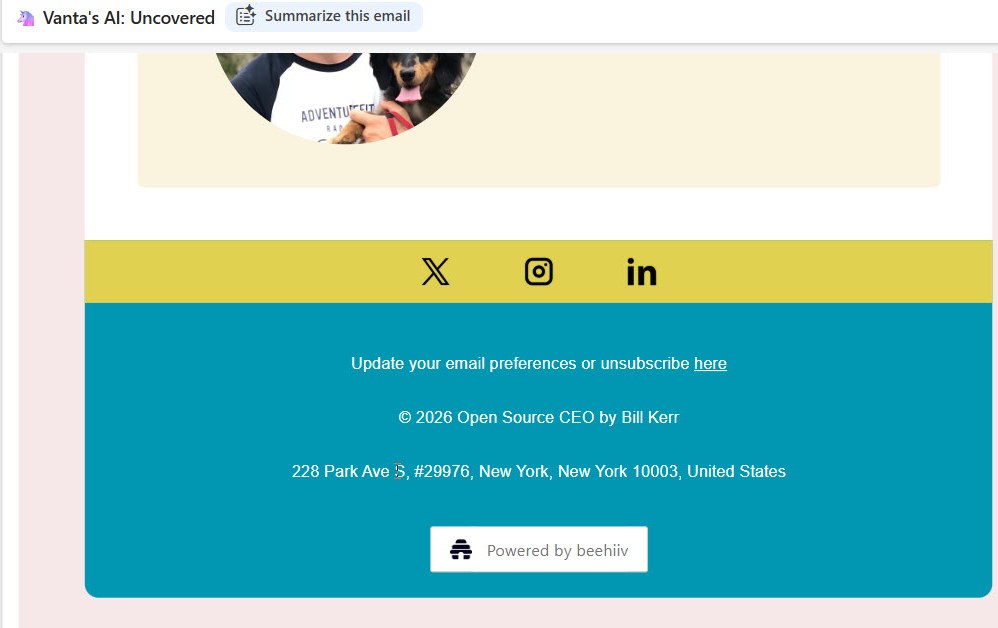 Every real marketing email has an Unsubscribe link at the bottom — webmail often adds a quick one up top.
One safety note
Only click Unsubscribe on mail from senders you actually recognize — a real store, a real newsletter. On a clearly spam or scam email from someone you don't know, do NOT click anything; clicking can just confirm your address is live. For those, use Delete or your email's "Report spam / Junk" button instead.
Quick Quiz: Put the Cleanup in Order
You want to clear out every email from "Daily Deals Store." Tap the steps in the order you'd do them:
Click the steps in order:
Click "Select all" to grab the whole batch
Click Archive (or Delete) to clear them in one move
Type "Daily Deals Store" in the search box and press Enter
See only that sender's emails in the results
That's the heavy lifting done.
Search a sender, select the batch, archive or delete — repeat for your top few senders, and unsubscribe from the noise on your way through. That alone will take an inbox from overwhelming to manageable in one sitting.
Next chapter, we make sure it stays clean — a couple of folders and one simple rule that files your mail for you automatically. Click below.