Alright — here are the three ways I'm going to show you.
You don't need to memorize all three. Most people use the first one and never touch the others. But knowing they exist means you can pick whichever fits the moment.
- Way 1 — Open Word, then click "Blank document" (the most common)
- Way 2 — Right-click on your desktop or in a folder, then choose "New" (Windows only, but slick)
- Way 3 — Use the keyboard shortcut Ctrl + N (Cmd + N on Mac) when Word is already open
Way 1: Open Word, Then Click Blank Document
This is the way most folks use. Works on Windows, Mac, and Word Online.
- Open Word. On Windows, click the Start menu (Windows logo, bottom-left) and start typing "Word" — click the Microsoft Word icon when it appears. On Mac, open Launchpad or Applications and click Microsoft Word.
- You'll see Word's Home screen. Across the top: "New," "Open," "Recent." Below: a row of templates (Blank, Resume, Cover Letter, Calendar, etc.) and your recently opened documents.
- Click "Blank document" (the first big template tile). It usually looks like a blank white sheet of paper.
- That's it. A brand-new, empty Word document opens. You can start typing right away.
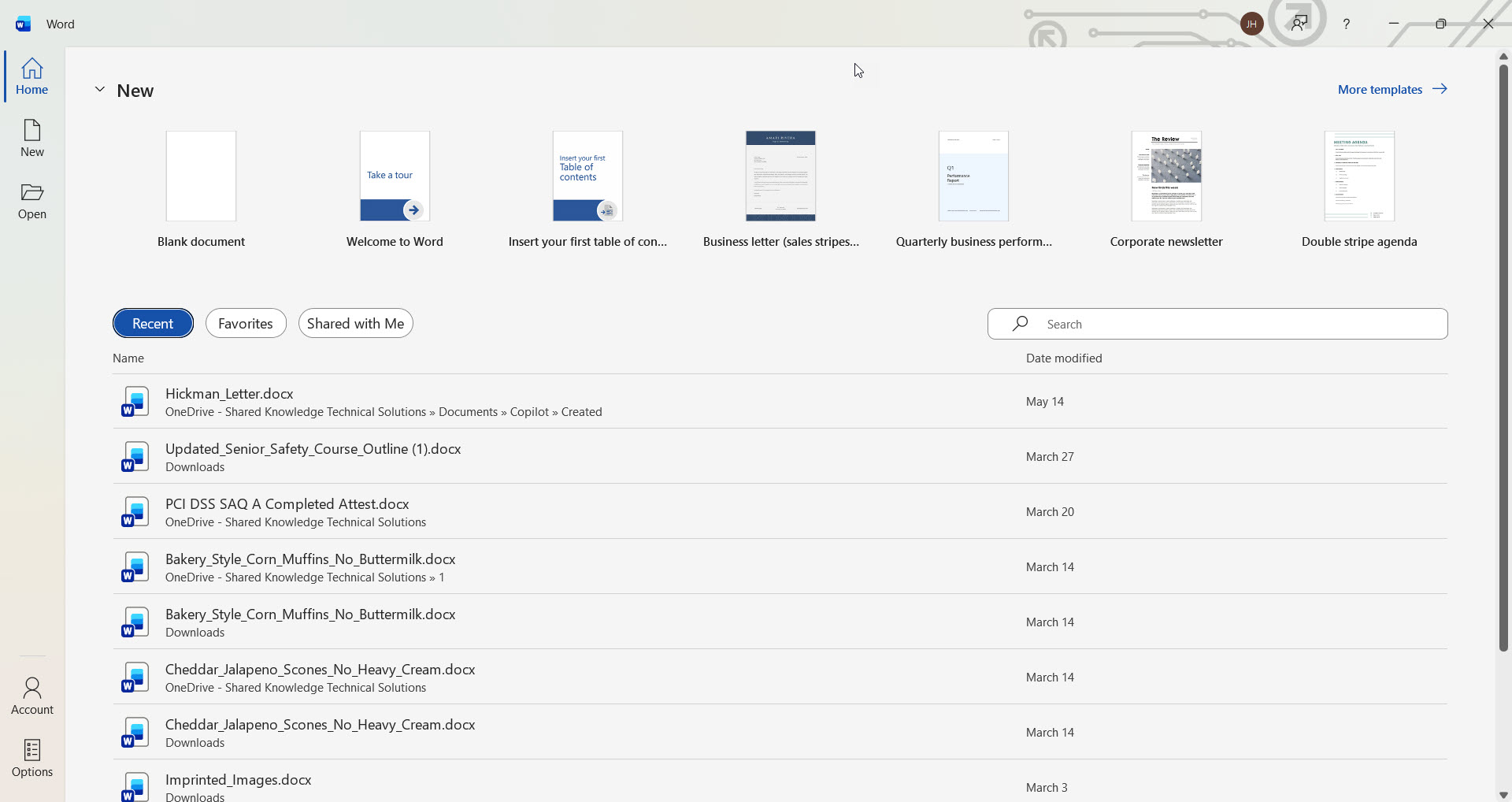 Word's Home screen — Blank document is the first tile in the row.
What if I don't see the Home screen?
Some versions of Word skip the Home screen and just open a blank document right away. If that happens, you're already there — just start typing. To open the Home screen later, click File (top-left), then New.

One way down. Before I show you the other two — what's the first thing you're going to write?
Asking because it decides which of the three ways I'd actually reach for.
Way 2: Right-Click on the Desktop (Windows only)
This is a faster way if you already know where you want to save the document. It works in any folder on Windows where Word is installed.
- Find an empty spot on your desktop or in a folder. Don't right-click on an existing icon — right-click on blank space.
- Right-click. A menu pops up. Hover over "New" — another menu slides out.
- Click "Microsoft Word Document." A new file appears with the name "New Microsoft Word Document.docx" highlighted — type a name to rename it right away, or press Enter to keep the default.
- Double-click the new file to open it in Word.
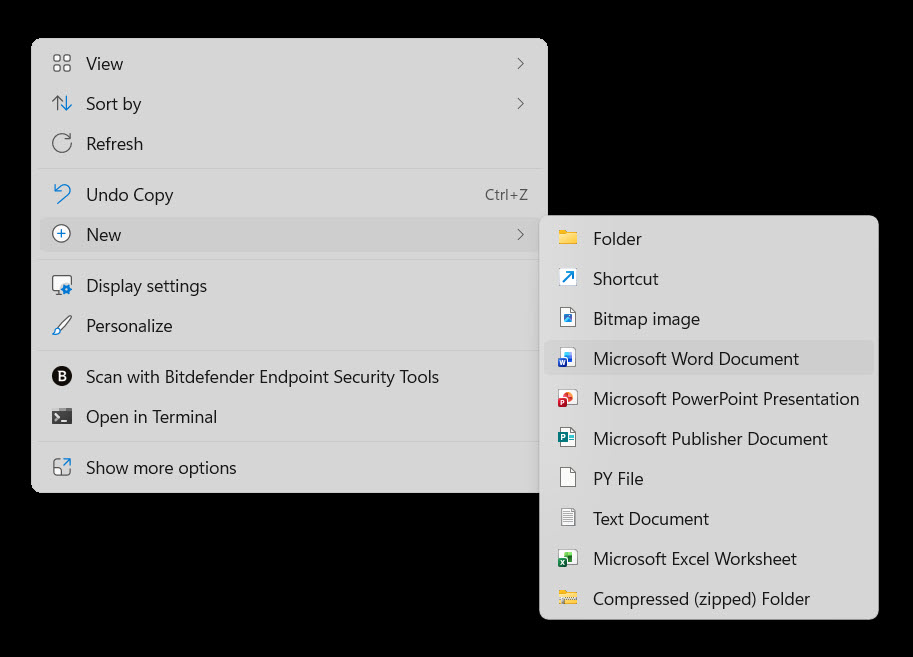 Right-click on the desktop › New › Microsoft Word Document.
Heads up: Mac doesn't have this
This trick is Windows-only because of how Windows handles right-click "New" menus. On a Mac, stick with Way 1 (open Word, click Blank) or Way 3 (the keyboard shortcut).

Why I like this one
You name the file before you even open it. Saves a step later when you'd otherwise have to remember to save with a real name. Try it once and you'll see what I mean.
Way 3: Keyboard Shortcut (Ctrl + N or Cmd + N)
If Word is already open, the fastest way to start another new document is a keyboard shortcut.
- Make sure Word is the active window (click on it once if needed).
- Press the keyboard shortcut:
Hold the first key down, tap the second, then let go of both.
A brand-new blank document opens in a separate window. Your old document is still right where you left it — just check the taskbar (Windows) or Dock (Mac) to switch between them.
One thing to watch
This shortcut always starts a blank document. You don't get a chance to pick a template this way. If you want a resume, calendar, or cover letter template, use Way 1 instead.
Quick Quiz: Put the Steps in Order
Let's lock in Way 1 (opening Word and clicking Blank). Tap the steps in the order you'd do them:
Click the steps in order:
Click "Blank document" on the Home screen
Start typing your document
Open Microsoft Word
Wait for the Word Home screen to appear
Three ways down.
Pick whichever feels most natural — most folks settle into Way 1 (open Word + click Blank) and never look back. The keyboard shortcut (Way 3) is handy once you're comfortable, especially if you make a lot of documents.
Next chapter, we tackle the question that pops up every time you click "New": Blank or Template? When does each one save you time? Click below to find out.
If Word is slow to open or your computer sighs every time you start a document, that is a machine problem rather than a Word problem — and it is usually a cheap fix, not a reason to buy a new computer.