
Email Like You've Got It Together: Find Any Message in Seconds (+ Signatures, Templates & Send-Later)
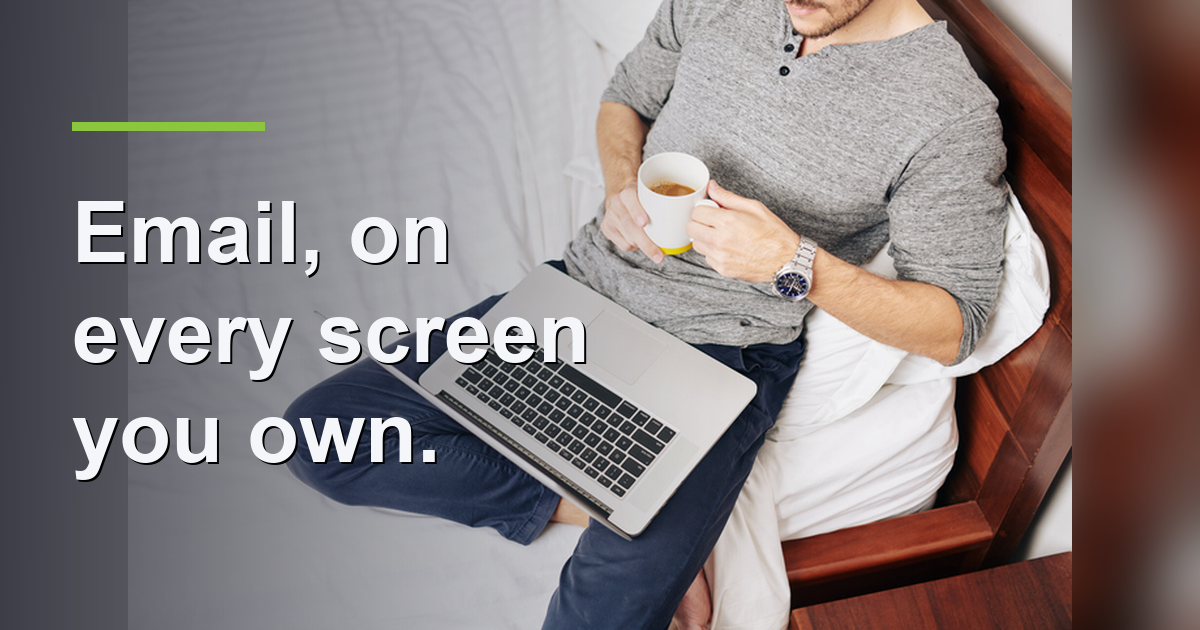
We cleared the clutter, set up the auto-filing, and learned to spot the fakes. Now the fun part — the finishing touches that make email feel effortless. None of this takes long, and every one of them buys back time you didn't know you were losing.
1. Stop scrolling. Start searching.
The single biggest time-waster in email is scrolling to find an old message. Don't. The search box at the top of every email program is shockingly powerful once you know a couple of tricks:
- Search by person: type from: and their name (from:Linda) to see only Linda's emails.
- Search for attachments: type has:attachment (Gmail) or use the "Has Attachments" filter (Outlook) to find that file someone sent you.
- Combine them: from:Linda invoice finds the invoice Linda sent, instantly, no matter how old.
Five seconds instead of five minutes. Do this a dozen times a day and you've bought back an hour a week.
2. A signature that does the introducing for you
Set your signature once and every email you send carries your name, title, phone, and website automatically — no retyping, and it looks professional to clients and donors. In Outlook: Settings → Mail → Compose and reply → Email signature. In Gmail: Settings (gear) → See all settings → Signature. Keep it short — name, role, phone, website. Skip the giant logo and the inspirational quote.
3. Templates for the emails you send over and over
If you type the same reply more than once a week — "thanks for your donation," "here are our hours," "here's how to book" — save it as a template instead of rewriting it every time. Gmail calls these Templates (turn them on under Settings → Advanced). Outlook has Quick Parts and saved drafts. Write it well once; reuse it forever. Your non-profit's volunteer-welcome email, your shop's "we got your order" reply — all candidates.
4. Send-later: write now, deliver at the right moment
This is my favorite, and almost nobody uses it. You can write an email at 11 o'clock at night and have it arrive at 7 the next morning — so you don't look like you were working at midnight, and so it lands at the top of someone's inbox when they actually read it. In Outlook, click the little arrow next to Send and choose Schedule send. In Gmail, click the arrow next to the Send button and pick a time. Great for early risers, great for not bugging people on weekends, great for sending the board reminder exactly when they'll see it.
5. Your inbox follows you to your phone — and that's a good thing
Here's where it all comes together. Everything we set up this month — the cleanout, the folders and rules, the search habits, even your signature — syncs automatically to your phone, because your email lives on your provider's servers (Outlook.com, Gmail, etc.), not on any one device. Archive an email on your computer, and it's archived on your phone too. File something into "Receipts" at your desk, and the folder's right there on your phone in the waiting room.
A couple of phone-specific touches worth a minute: set up a separate mobile signature (a simple "Sent from my phone — please excuse brevity" is fine), and turn OFF notifications for the folders your rules auto-file — you don't need a buzz every time a newsletter lands in its drawer. Let your phone alert you only for the inbox, where the things that need YOU actually are.
(One honest note: we set all of this up on your computer first, because that's where it's easiest to get right — bigger screen, real keyboard, every setting in one place. The phone just inherits it. And to be clear, when we help folks with this, we're working on your computer and your email account — the phone simply comes along for the ride.)
Put a bow on it
That's the inbox, start to finish: cleared, self-sorting, fake-proof, and fast — on every screen you own. Next month we move to the next room in your organized digital life: your files. But for now, enjoy opening an inbox you don't dread.
Want these set up properly for your team — signatures matched to your brand, templates for your common replies, rules tuned to how you actually work? That's a perfect on-site session. 540.303.2410, or start with our free 10-minute courses in Skits' Classroom.
Questions about any of this? Give Jerry a call at 540.303.2410. We help Winchester-area homes, businesses, and non-profits.
Getting consistent signatures across a whole team is fiddlier than doing your own. Managed IT covers rolling that out so everybody matches without anybody fighting the settings.